How to Integrate Typeform with ChatPro AI Agents (Step-by-Step Guide)
Learn how to integrate Typeform with ChatPro AI Agents in minutes. Automatically collect feedback, surveys, and form responses inside AI-powered conversations.

Andrés Olarte
Author
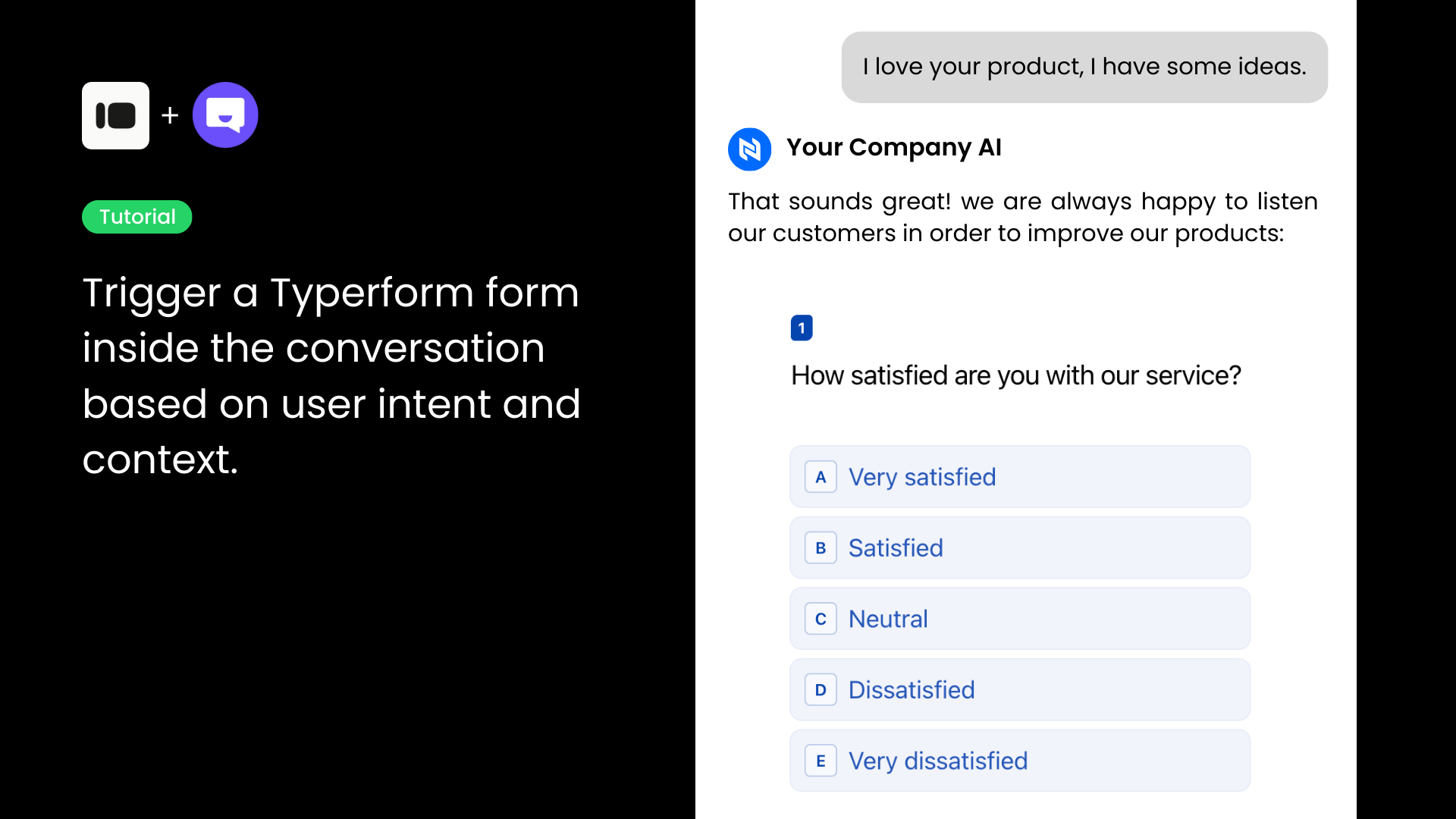
Typeform is one of the most popular tools for creating interactive forms, surveys, and feedback flows. When combined with ChatPro AI Agents, you can trigger Typeform forms contextually inside conversations, allowing users to submit feedback, surveys, or data exactly when they need to.
In this guide, you’ll learn how to connect a Typeform form to ChatPro AI step by step, using nothing more than a form link.
What You’ll Need
Before getting started, make sure you have:
- A Typeform account
- At least one published Typeform form
- Access to your ChatPro AI dashboard
No coding is required.
Step-by-Step: Connect Typeform to ChatPro AI
Step 1: Log in to Your Typeform Account
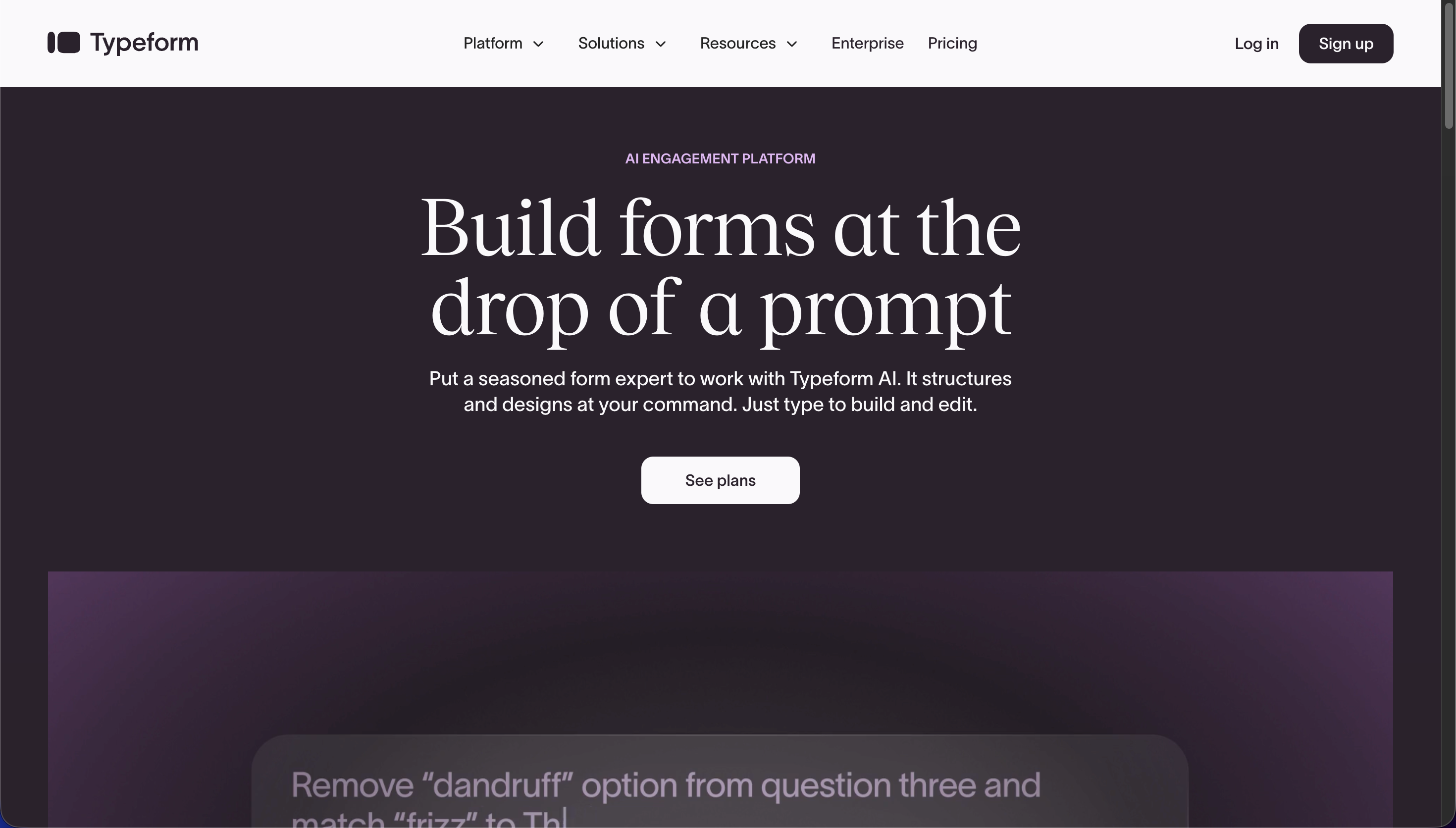
Go to Typeform and log in to your account.
Once logged in, you’ll land in your Typeform workspace, where all your forms are listed.
Step 2: Select the Form You Want to Use
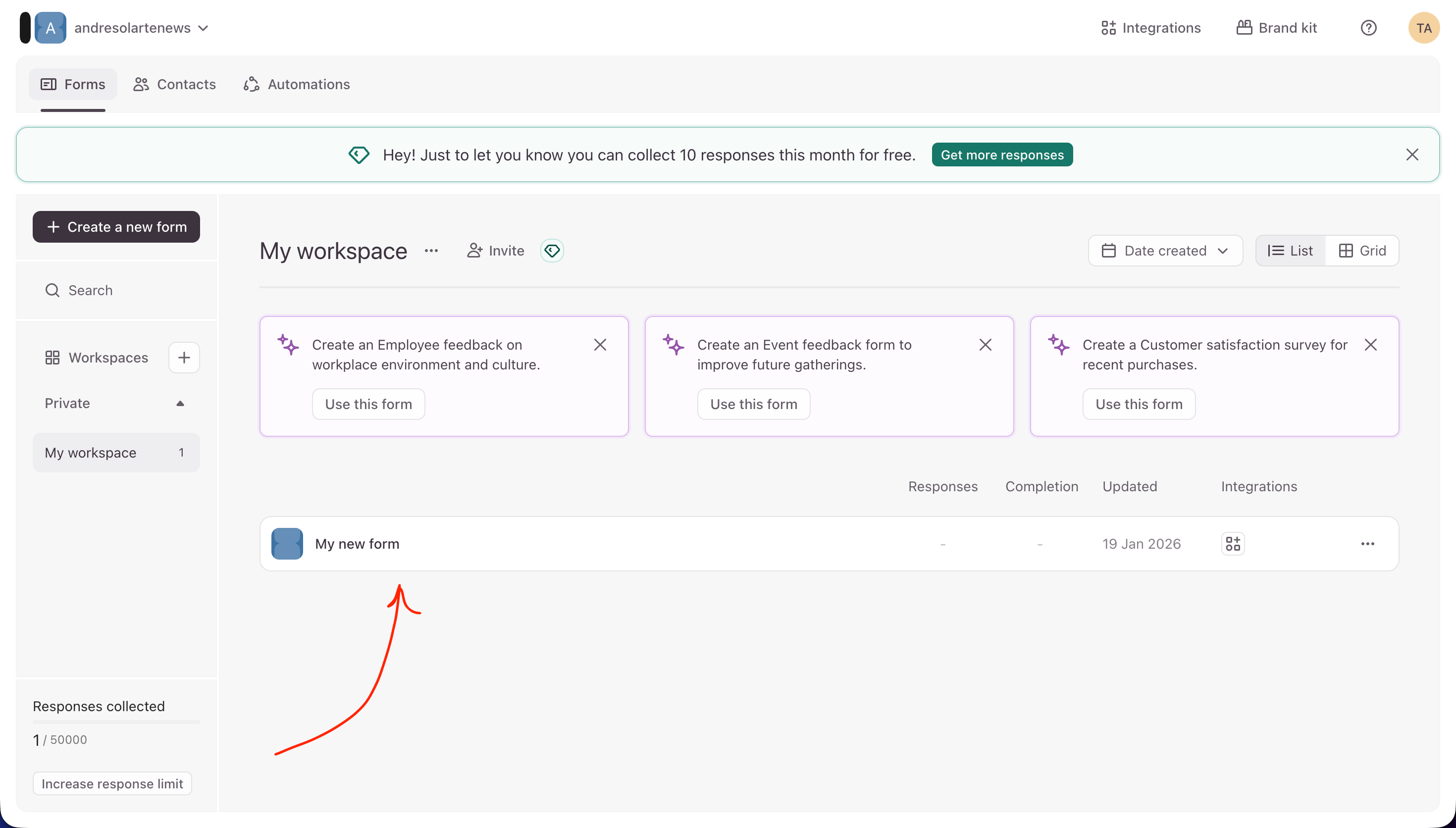
From your workspace:
- Locate the form you want to connect to ChatPro AI
- Click on the form to open it
This can be a feedback form, customer satisfaction survey, lead capture form, or any other Typeform.
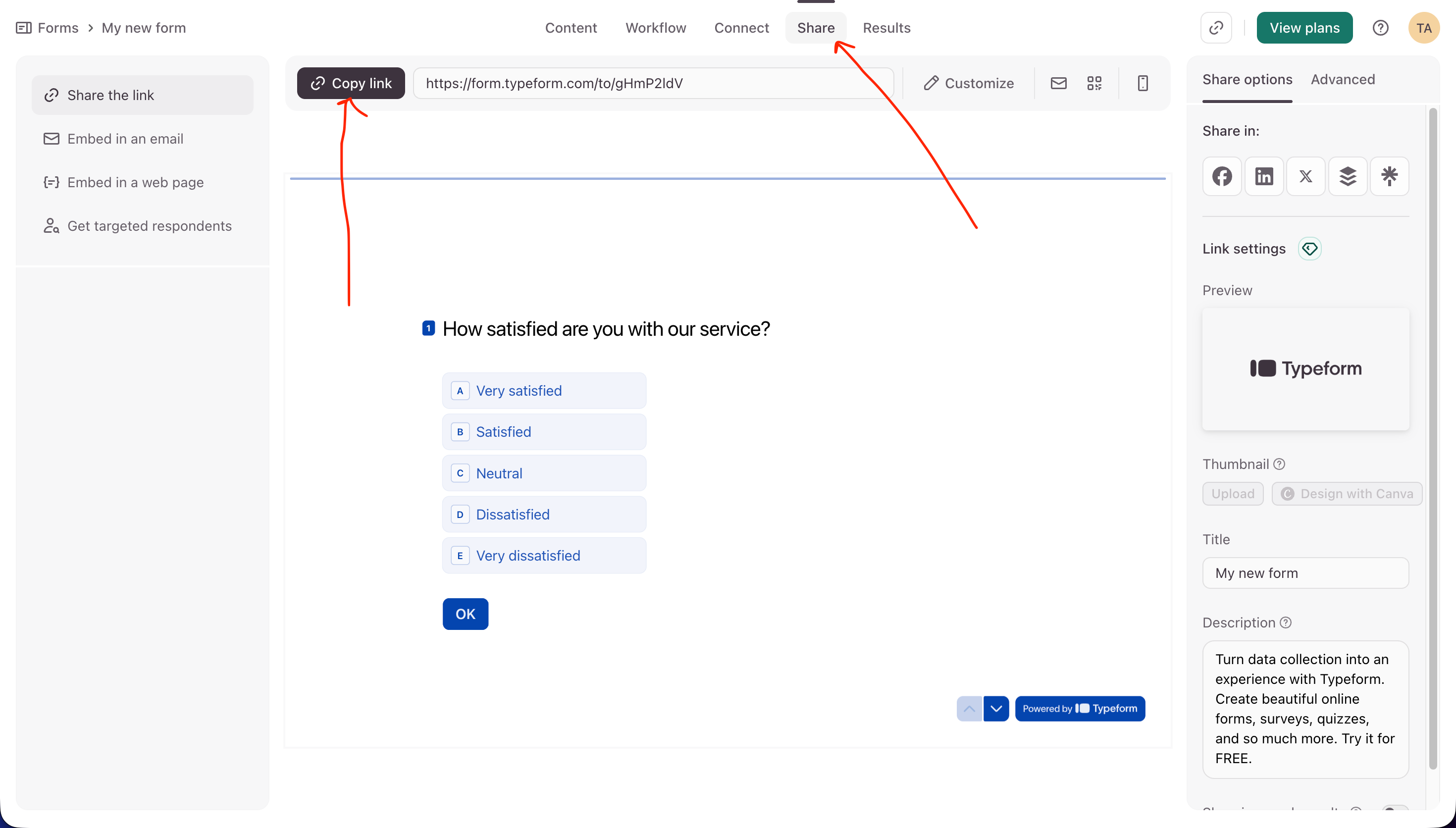
Step 3: Copy the Typeform Share Link
Inside your form editor:
- Click on the “Share” tab at the top
- Click “Copy link”
This link is the public URL that ChatPro AI will use to trigger the form inside conversations.
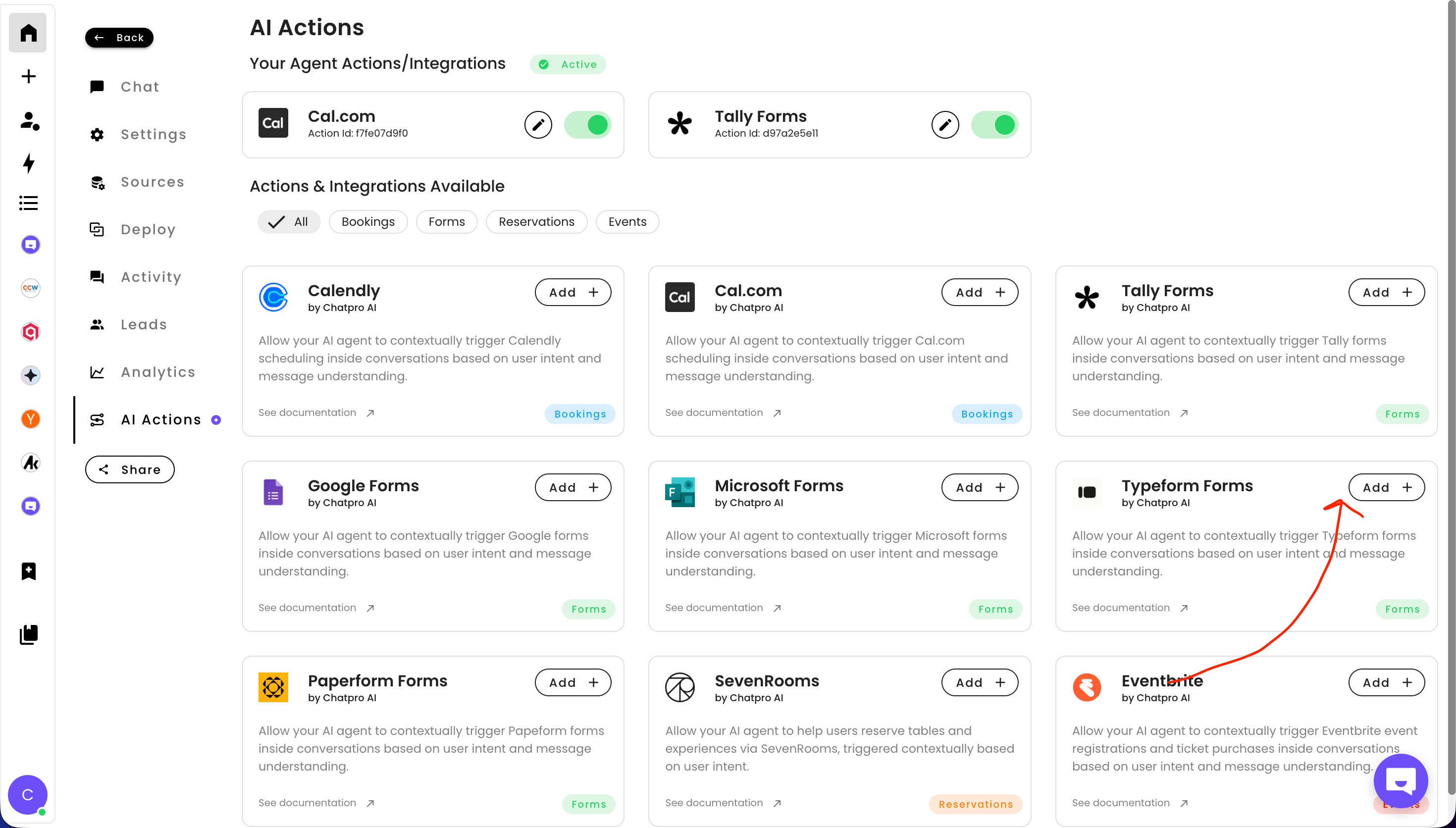
Step 4: Open ChatPro AI and Go to AI Actions
Now switch to ChatPro AI:
- Open your ChatPro AI dashboard
- Go to AI Actions
- Find Typeform Forms in the integrations list
- Click “Add”
Step 5: Paste Your Typeform Link
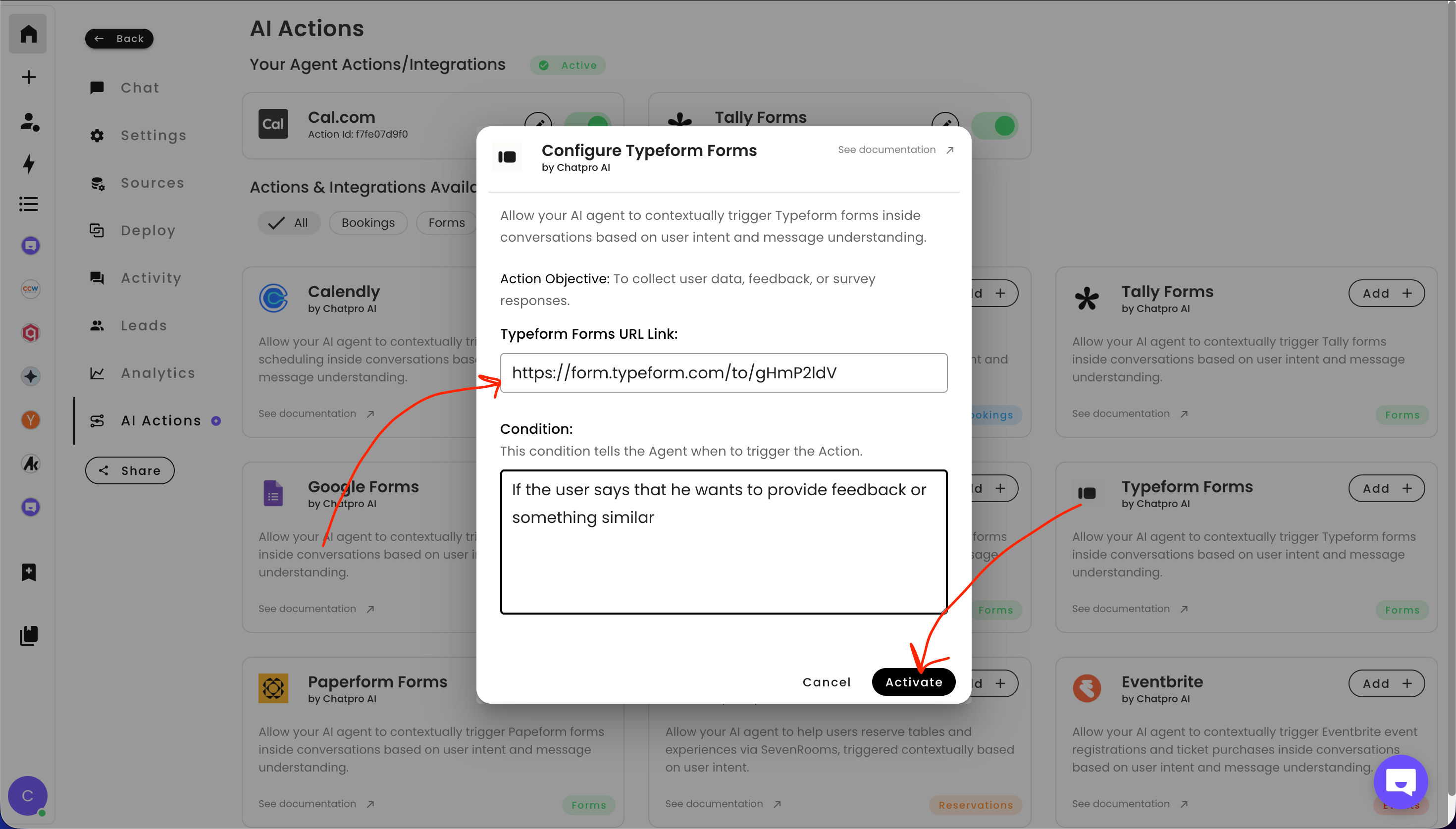
In the Typeform configuration modal:
- Paste your copied Typeform URL into the Typeform Forms URL Link field
- Define the trigger condition, for example:
This condition tells your AI Agent when to trigger the Typeform automatically during a conversation.
Step 6: Activate the Integration
Finally:
- Click “Activate”
- Make sure the Typeform action is marked as Active
That’s it 🎉
Your ChatPro AI Agent can now intelligently trigger Typeform forms inside conversations.
What You Can Do With This Integration
With Typeform connected to ChatPro AI, you can:
- Collect customer feedback inside chat
- Trigger surveys at the perfect moment
- Capture leads conversationally
- Automate data collection without breaking the user experience
- Combine AI conversations with structured form responses
This creates a seamless AI-driven user journey, instead of forcing users to navigate away manually.
Why Use Typeform with ChatPro AI?
- ✅ No-code integration
- ✅ Context-aware AI triggering
- ✅ Better response rates
- ✅ Cleaner data collection
- ✅ Perfect for feedback, surveys, and forms
If your users are already talking to an AI Agent, this integration ensures they can take action instantly.
Final Thoughts
Integrating Typeform with ChatPro AI takes less than five minutes and unlocks powerful conversational data collection for your business.
If you’re looking to combine AI Agents + forms + automation, this is one of the easiest and most effective integrations you can set up.
Share this article
Build AI agents for Free using ChatPro
Connect your data, get a custom AI Agent, and share it anywhere.
- - Embed on your website
- - AI Chat and Voice

Keep Reading
How to Integrate Tally Forms with ChatPro AI Agents (Step-by-Step Guide)
Learn how to integrate Tally Forms with ChatPro AI in seconds. Collect user data, feedback, and surveys automatically using AI-powered agents and smart form triggers.
How to Integrate Calendly with Chatpro AI for Automated Appointment Schedulin
Learn how to integrate Calendly with Chatpro AI step by step to automate meeting scheduling with AI agents. Improve conversions, reduce friction, and book meetings directly from conversations.
How to Add AI-Powered Appointment Scheduling to Your Agent (Cal.com)
Learn how to add AI-powered appointment scheduling to your chatbot. Step-by-step guide to automate meeting, demo, and call bookings using AI agents and Cal.com.
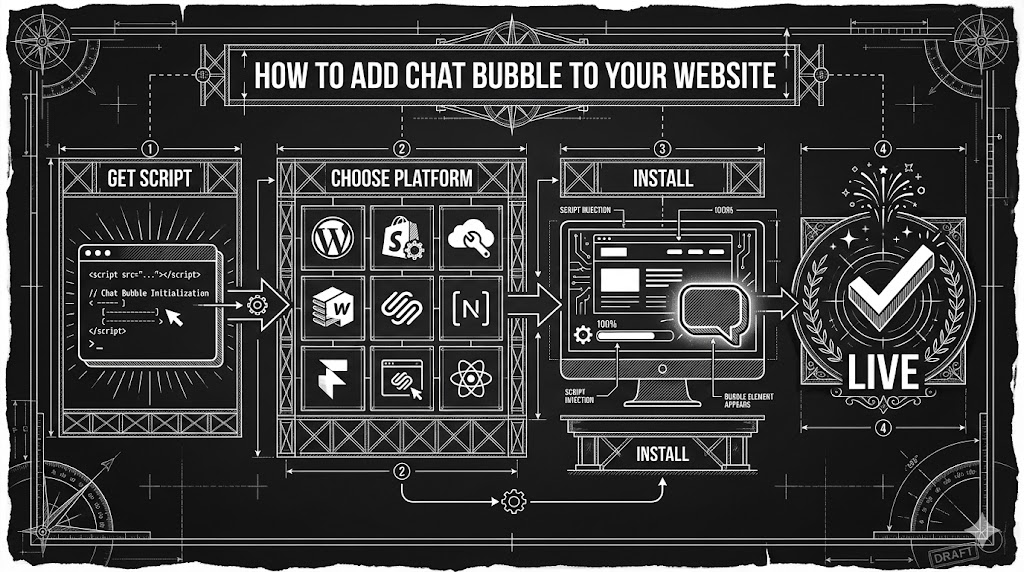
How to add a Chat Bubble to your website
A quick step-by-step guide to installing the ChatPro chat bubble on top website builders (WordPress, Framer, Webflow, Shopify, Wix, Squarespace) and developer frameworks like React, Vue, Angular, and Next.js.