How to Add AI-Powered Appointment Scheduling to Your Agent (Cal.com)
Learn how to add AI-powered appointment scheduling to your chatbot. Step-by-step guide to automate meeting, demo, and call bookings using AI agents and Cal.com.

Andrés Olarte
Author
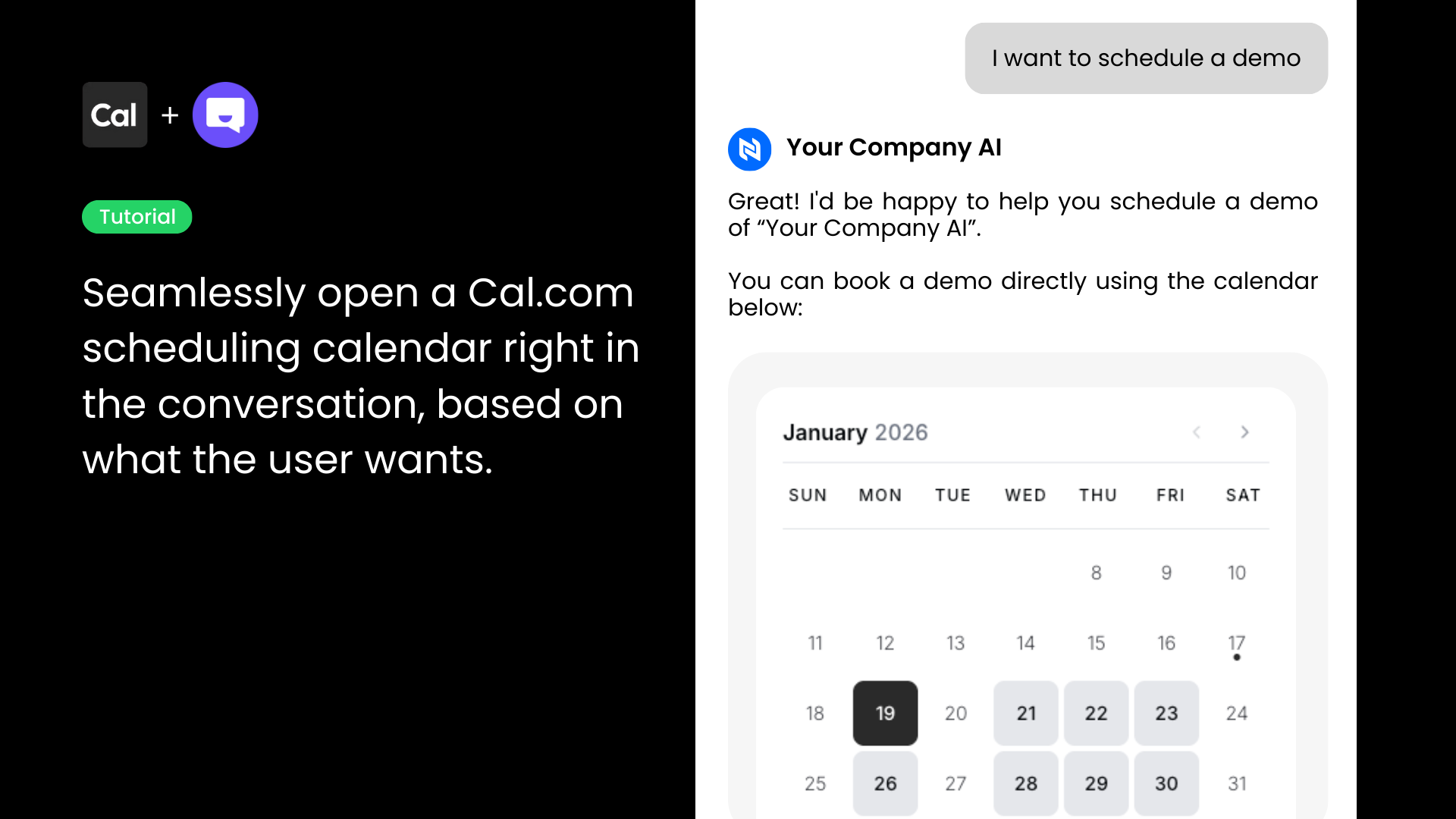
This guide will walk you through how to connect Cal.com with Chatpro AI so your AI Agent can automatically help users schedule meetings, demos, or calls.
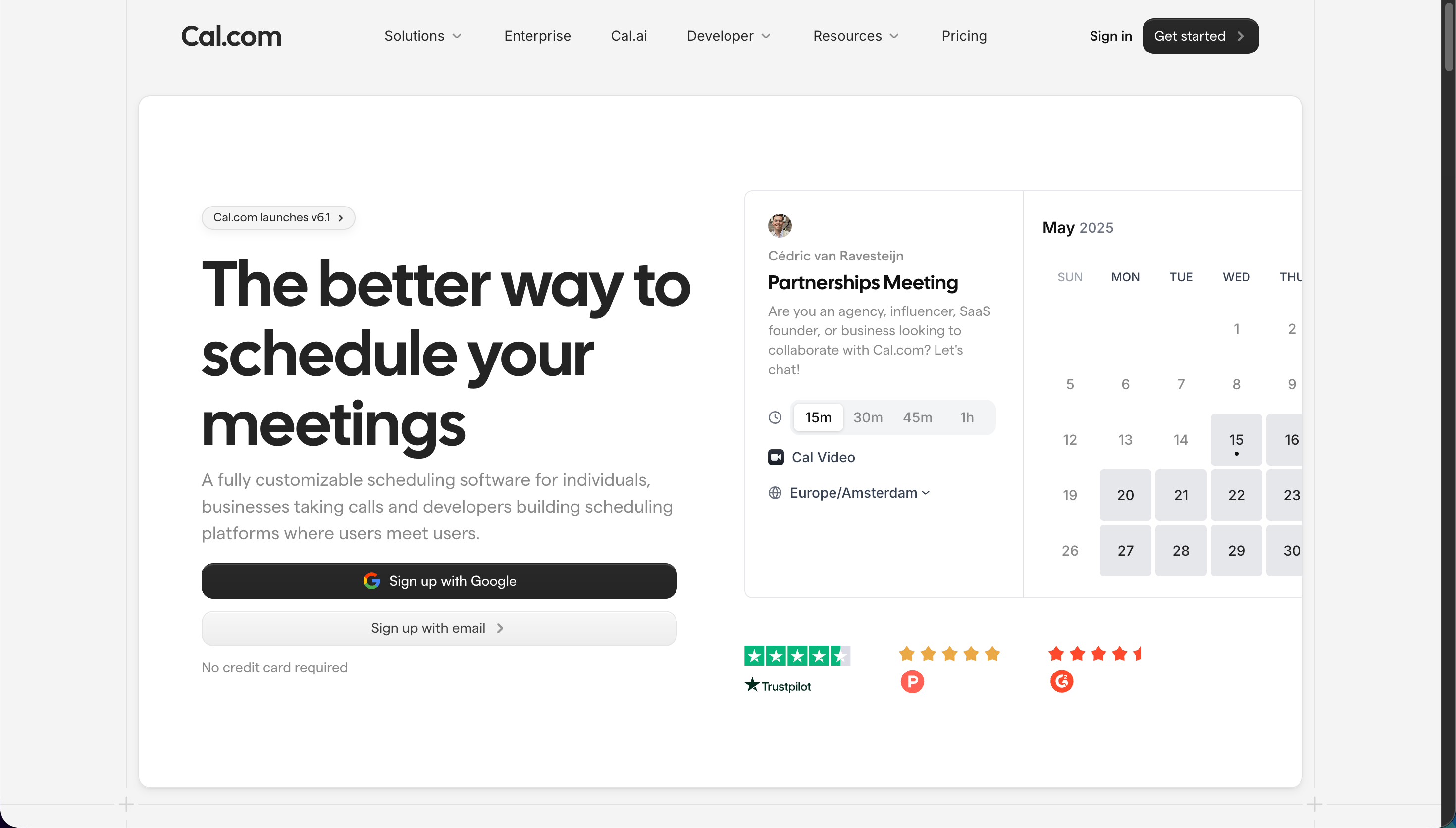
Step 1: Log in to Cal.com
- Go to https://cal.com
- Sign in to your Cal.com account (or create one if you don’t have it yet).
Step 2: Create or Select an Event Type
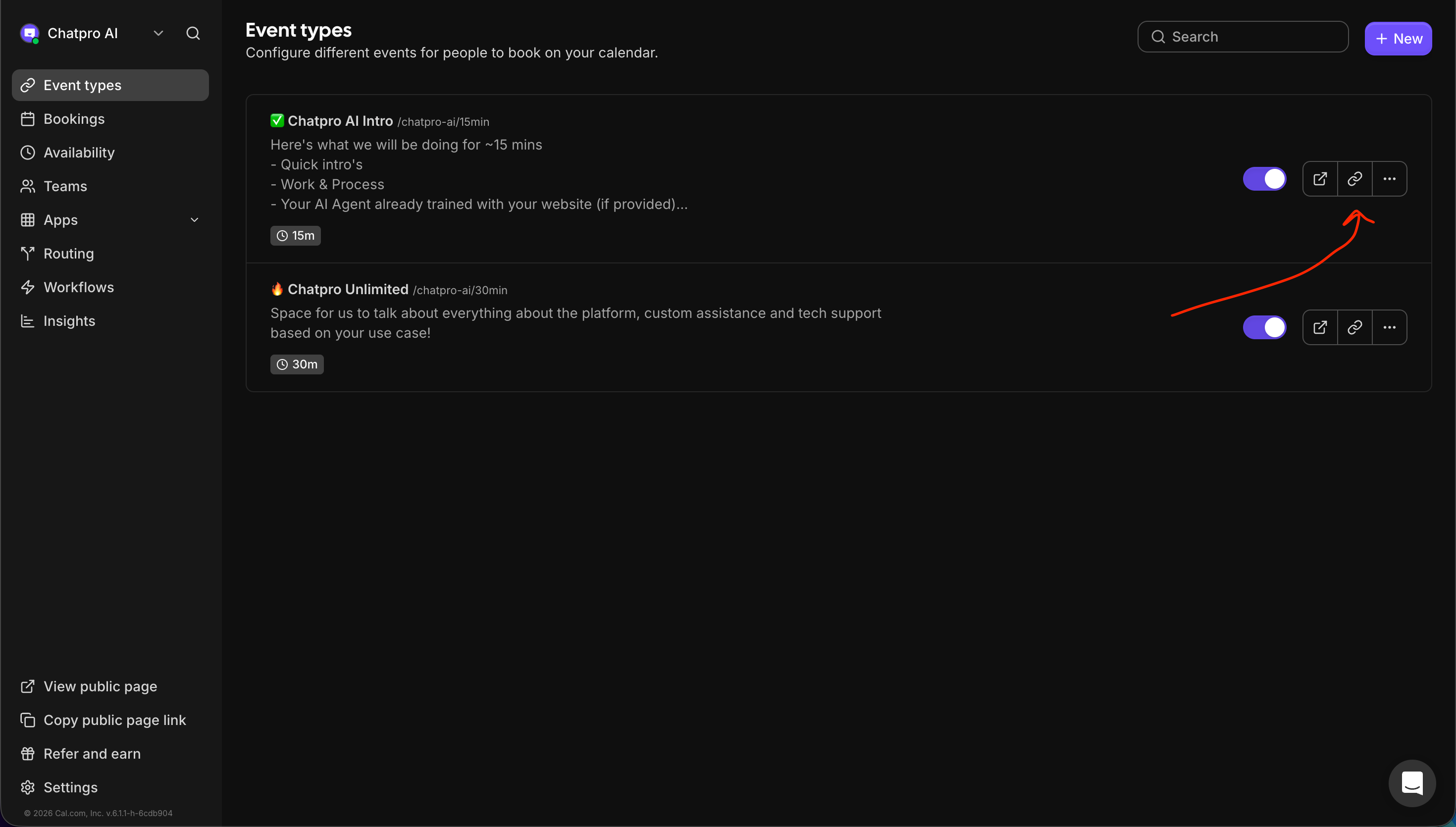
- Inside your Cal.com dashboard, click on Event types.
- Either:
- Make sure the event is enabled/active.
Step 3: Copy the Event Booking Link
- On the right side of the event type, click the link icon (🔗) or the three-dot menu.
- Click Copy link.
- Your link should look similar to:
This is the link your AI Agent will use to schedule meetings.
Step 4: Open Chatpro AI and Go to AI Actions
- Log in to your Chatpro AI dashboard.
- From the left sidebar on your Agent space, click on AI Actions.
- Under Actions & Integrations Available, locate Cal.com.
- Click Add.
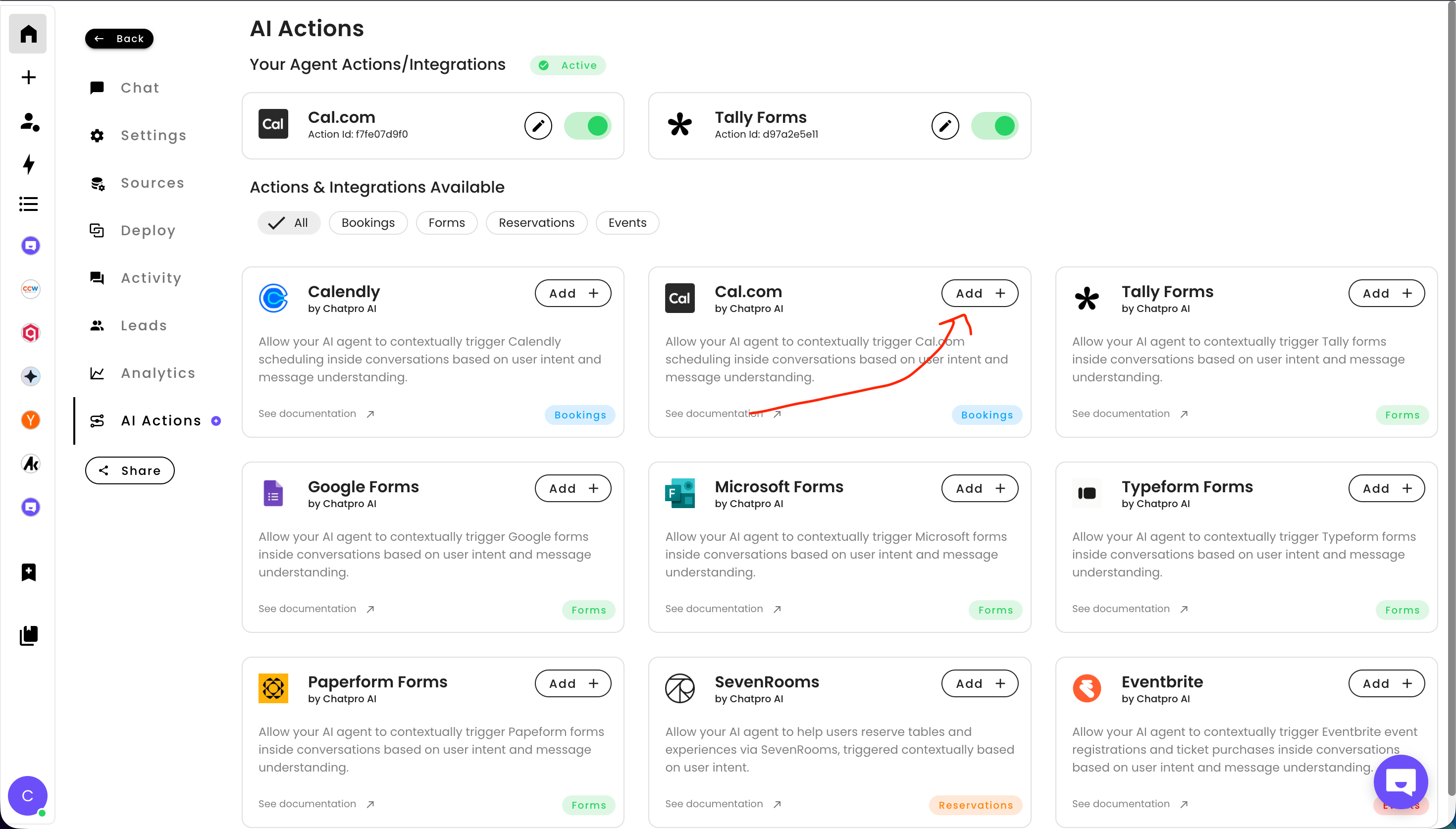
Step 5: Configure the Cal.com Integration
- Paste your Cal.com event URL into the Cal.com URL Link field.
- Define the Condition that tells the AI when to trigger scheduling.
This condition helps the AI understand when it should offer the booking flow.
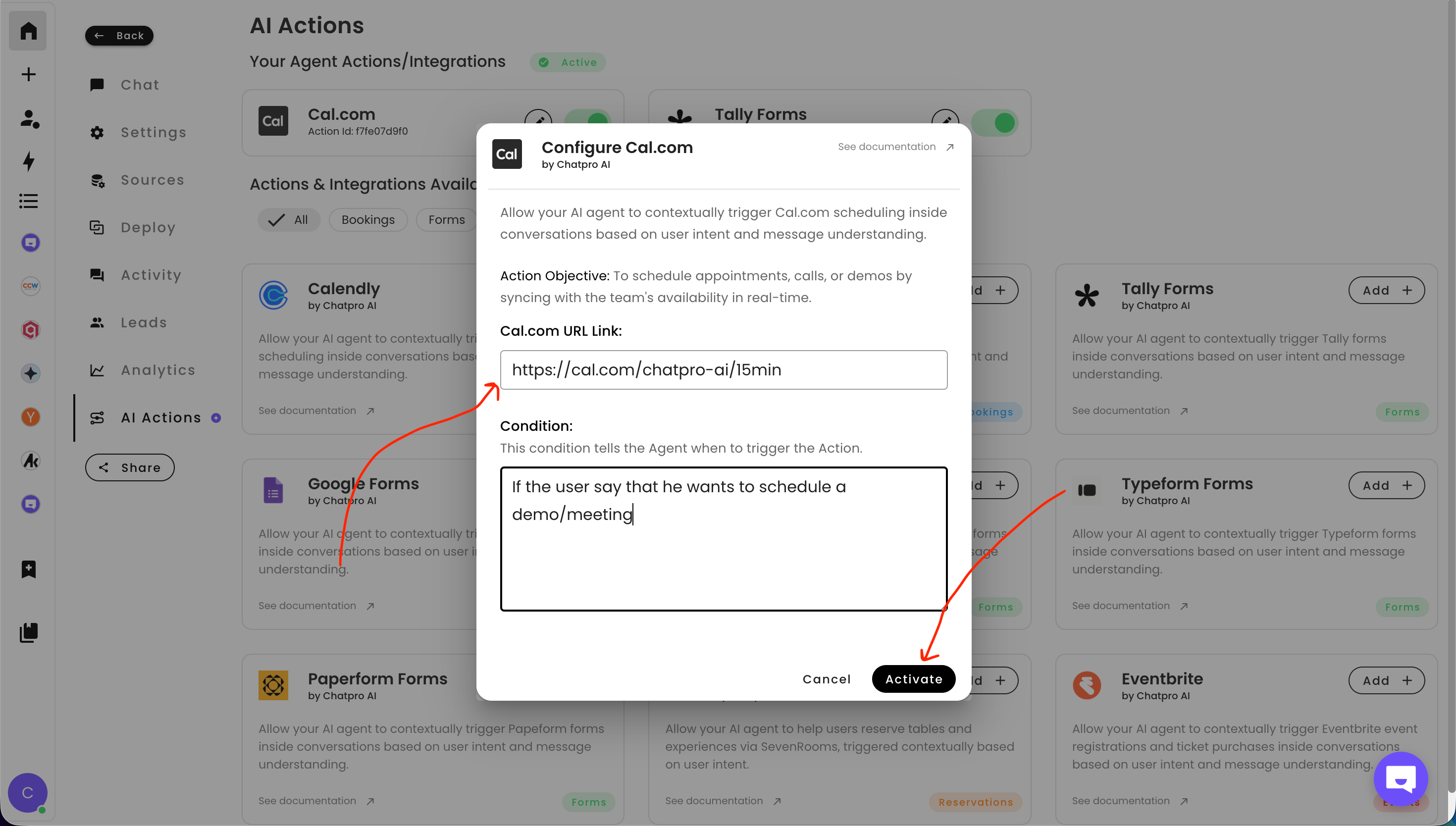
Step 6: Activate the Integration
- Click Activate.
- Make sure the Cal.com action status is set to Active (green toggle).
✅ Done! What Happens Next?
- When a user asks your AI Agent to schedule a meeting, demo, or call,
- The agent will automatically trigger the Cal.com booking link,
- Allowing the user to select a date and time based on your real-time availability.
Best Practices
- Use different Cal.com event links for different use cases (sales, support, onboarding).
- Keep your condition text clear and intent-focused.
- Test the flow by chatting with your AI Agent and asking for a meeting.
Share this article
Build AI agents for Free using ChatPro
Connect your data, get a custom AI Agent, and share it anywhere.
- - Embed on your website
- - AI Chat and Voice

Keep Reading
How to Integrate Typeform with ChatPro AI Agents (Step-by-Step Guide)
Learn how to integrate Typeform with ChatPro AI Agents in minutes. Automatically collect feedback, surveys, and form responses inside AI-powered conversations.
How to Integrate Tally Forms with ChatPro AI Agents (Step-by-Step Guide)
Learn how to integrate Tally Forms with ChatPro AI in seconds. Collect user data, feedback, and surveys automatically using AI-powered agents and smart form triggers.
How to Integrate Calendly with Chatpro AI for Automated Appointment Schedulin
Learn how to integrate Calendly with Chatpro AI step by step to automate meeting scheduling with AI agents. Improve conversions, reduce friction, and book meetings directly from conversations.
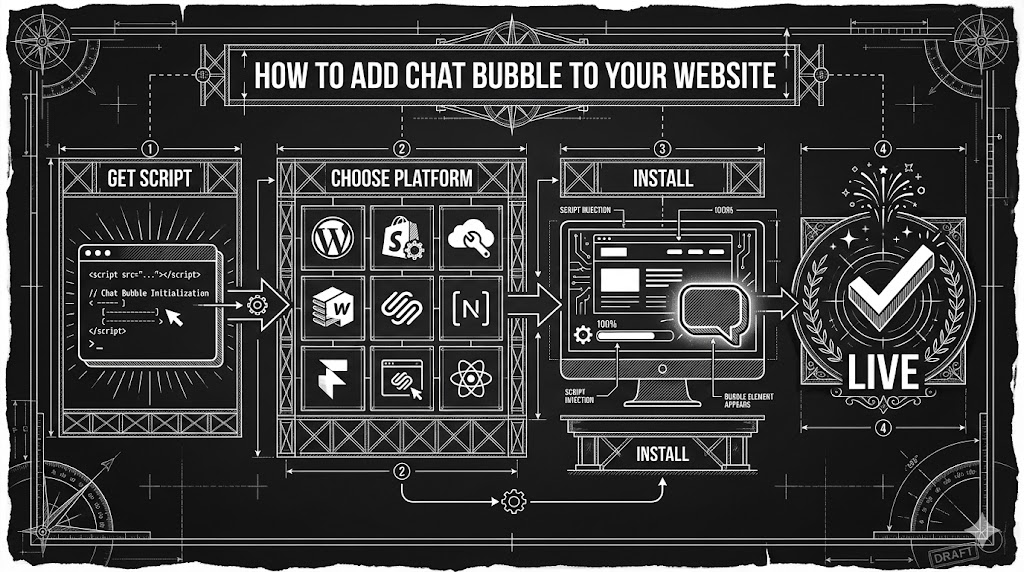
How to add a Chat Bubble to your website
A quick step-by-step guide to installing the ChatPro chat bubble on top website builders (WordPress, Framer, Webflow, Shopify, Wix, Squarespace) and developer frameworks like React, Vue, Angular, and Next.js.